How to Fix WooCommerce Square Nonce & Checkout Errors (The Permanent Solution)
If you run a WooCommerce store with Square, you've probably seen it: checkout loads, the customer enters their details, and the payment step hangs — or WordPress throws a nonce verification failed error. Sometimes the Square card field never renders at all.
These aren't random glitches. They're predictable failure modes of on-site payment fields on a platform where themes, plugins, and caching layers all touch the same checkout page.
This guide explains what's really going wrong — and why Square Hosted Checkout is the permanent fix merchants and agencies rely on when they need checkout to work on every theme.
Download free on WordPress.org
What WooCommerce Square nonce errors actually mean
A nonce ("number used once") is a WordPress security token. WooCommerce checkout uses nonces to verify that payment requests come from a legitimate session on your site.
When you see a nonce error at checkout, it usually means:
- The checkout page was cached and served with an expired token.
- A JavaScript error stopped WooCommerce from refreshing checkout fragments.
- A plugin conflict interrupted the AJAX cycle that validates the cart and payment step.
- The customer's session timed out while they were on a slow or multi-step checkout.
Clearing cache might help once. It won't stop the next conflict from another plugin update.
Why on-site Square card fields break on real WordPress sites
On-site Square integrations embed card fields directly in your theme's checkout template. That sounds convenient — until your stack looks like a typical merchant site:
JavaScript conflicts — Payment scripts compete with analytics, chat widgets, A/B testing tools, and minified theme bundles. One error on checkout can prevent Square's tokenizer from initializing.
Theme and page builder overrides — Custom checkout layouts (Elementor, Divi, block themes, funnel plugins) often remove or reorder WooCommerce hooks.
Optimization plugins — Deferring JavaScript or combining files frequently breaks payment iframes and wallet buttons.
Caching and CDNs — Full-page cache can serve checkout HTML with stale nonces.
The pattern: the more code runs inside your checkout page, the more ways checkout can fail — before Square ever processes a payment.
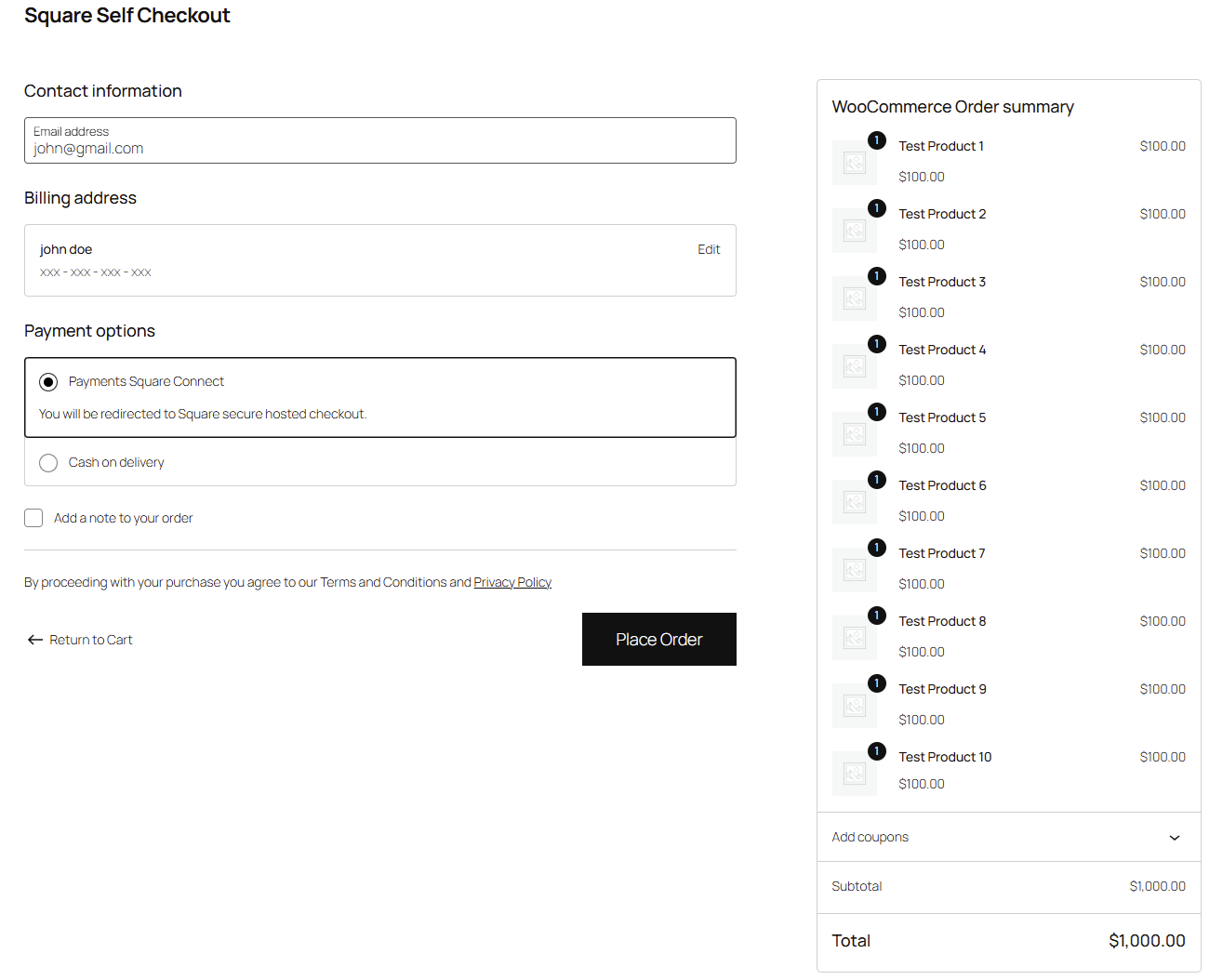
The permanent solution: Square Hosted Checkout
Square Hosted Checkout moves the sensitive payment step to Square's own page (checkout.square.site).
Your WordPress site handles catalog, cart, and customer details. When it's time to pay, the buyer is redirected to Square — where card fields, Apple Pay, Google Pay, and other wallets are maintained by Square. Your theme's CSS and JavaScript cannot break Square's payment UI. Card data never touches your WordPress server.
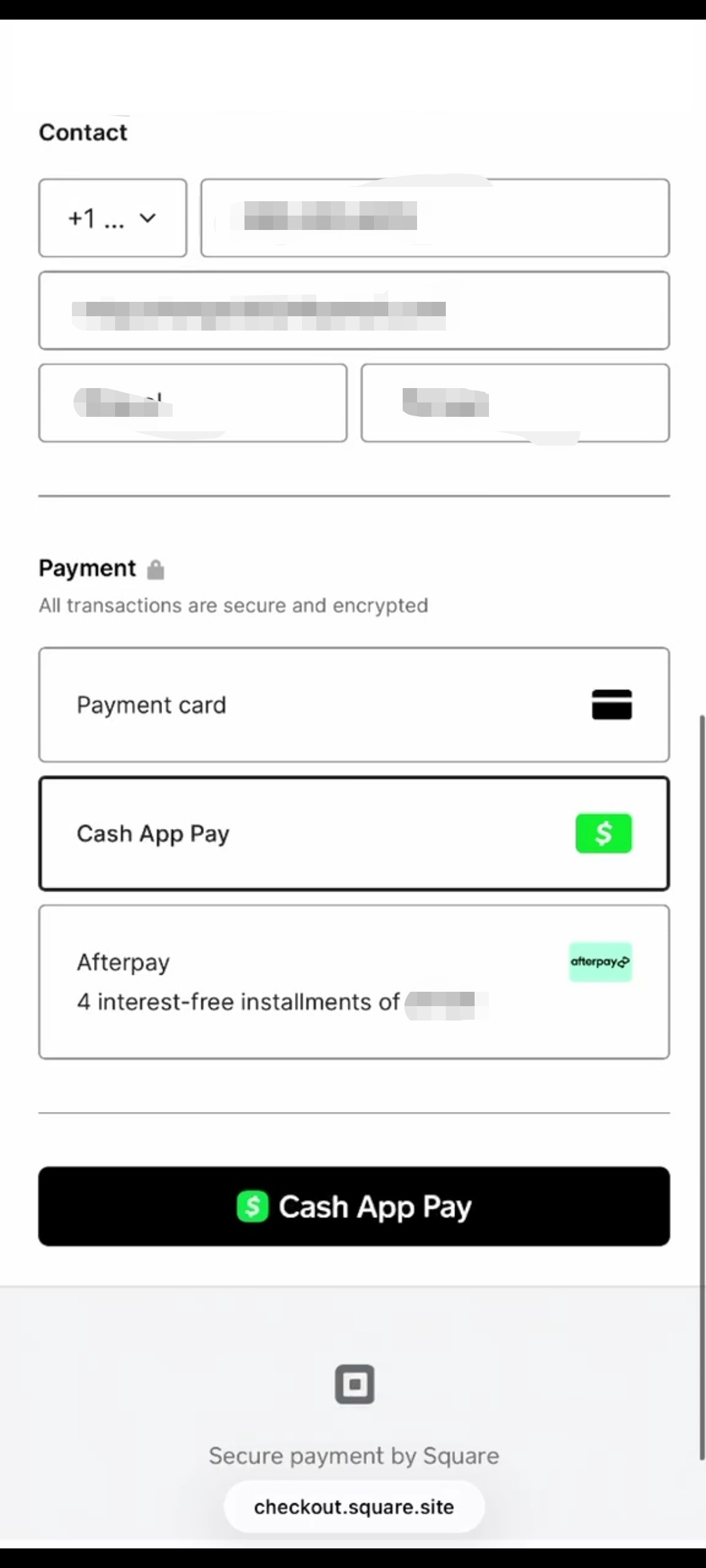
For most merchants, this eliminates an entire category of nonce and front-end payment failures — because the fragile step no longer runs inside your theme.
Payments Square Connect — built for Hosted Checkout
Payments Square Connect is a free WordPress plugin built around Hosted Checkout:
- WooCommerce checkout — Square gateway with redirect to Hosted Checkout
- Pay for Order — email or copy payment links for unpaid orders
- Refunds from wp-admin — WooCommerce, WPForms, and Fluent Forms
- One Square OAuth connection — Sandbox and Live, automatic token renewal
- Optional SKU sync — matching SKUs update Square inventory on paid orders
- No extra plugin fee — Square's standard processing rates only
Forms without Pro payment add-ons
| Plugin | Hosted Checkout setup |
|---|---|
| Fluent Forms | Enable under Global Settings → Payment Methods — free or Pro |
| WPForms | Add Square Hosted Checkout field — no WPForms payment tier required |
| Contact Form 7 | [square_pay amount:25.00] shortcode |
Step-by-step: migrate to Hosted Checkout
- Install Payments Square Connect from WordPress.org.
- Open Payments Square Connect → Get started and connect Square in Sandbox.
- Enable the WooCommerce payment gateway.
- Run a full test checkout in Sandbox.
- Switch to Live when ready.
Troubleshooting checklist
- Confirm Sandbox vs Live matches your Square app credentials.
- Exclude cart and checkout from full-page cache.
- Enable Debug Log on the Connect screen.
- Check WooCommerce → Status → Logs (source
shc4wc). - Configure webhooks so payment IDs save for refunds.
On-site vs Hosted Checkout
| On-site card fields | Square Hosted Checkout | |
|---|---|---|
| Theme / JS conflicts | Common | Rare at payment step |
| Nonce sensitivity | High | Low |
| Card data on WordPress | In browser tokenizer | Never |
| Wallets | Theme-dependent | Managed by Square |
Get started free
Questions? Contact support — 24/7 email, WhatsApp, and the WordPress.org forum.