Customer sync — Square ↔ WordPress
Sync customers between your Square Customer Directory and WordPress users from Payments Square Connect → Connect. No Square webhooks required for this feature.
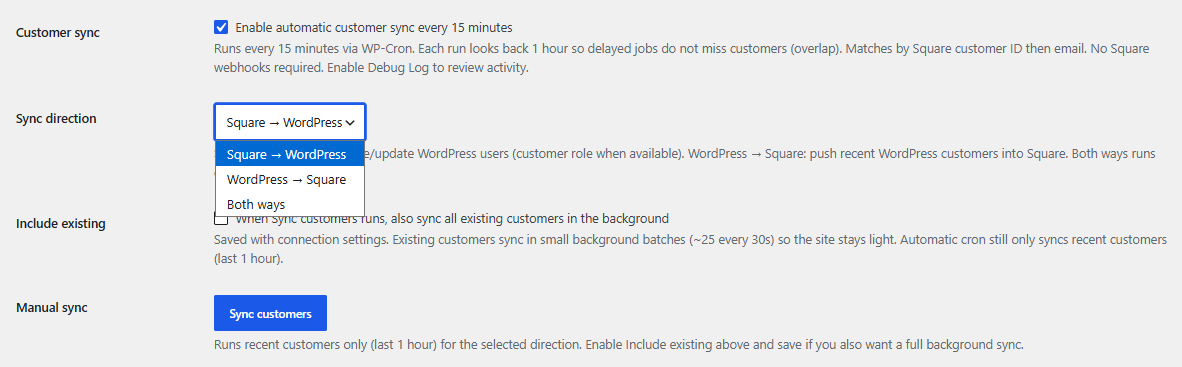
Enable sync
- Open Payments Square Connect → Connect.
- Turn on Customer sync (automatic every 15 minutes).
- Choose Sync direction:
- Square → WordPress — create/update WP users (WooCommerce
customerrole when available) - WordPress → Square — push WP customers into Square
- Both ways — run each direction in one sync
- Optionally enable Include existing — when you click Sync customers, also queue a full directory sync in the background.
- Click Save connection settings.
Automatic sync (recent only)
When Customer sync is enabled, WP-Cron runs about every 15 minutes and only looks at customers from the last 1 hour (overlap so delayed cron does not miss rows).
| Direction | Filter |
|---|---|
| Square → WordPress | Square customers with created_at in the last hour |
| WordPress → Square | WP users with the customer role registered in the last hour |
Manual Sync customers
| Setting | Behavior |
|---|---|
| Include existing off | Syncs recent customers only (same 1-hour window as cron) |
| Include existing on | Syncs recent first, then queues all existing customers in slow background batches (~25 every ~30 seconds) |
Background existing sync shows a progress notice on the Connect page. You can Cancel it anytime. Automatic recent cron keeps running separately.
Matching rules
- WordPress user meta
_square_customer_id(Square customer ID) - Else match by email
- Create or update as needed (name, phone / billing fields when present)
OAuth permissions
Customer sync needs Square permissions for customers (read and write). If the Connect screen says scopes are missing, Disconnect then Connect again and approve the updated permissions.