Getting started — Square payment gateway setup
Connect Square for payments on WordPress in minutes. This guide covers Sandbox and Live setup for the WooCommerce payment gateway, forms, and payment links.
Follow the steps below to connect Square and take your first test payment.
1. Open the setup wizard
After activation, go to Payments Square Connect → Get started in WordPress admin.
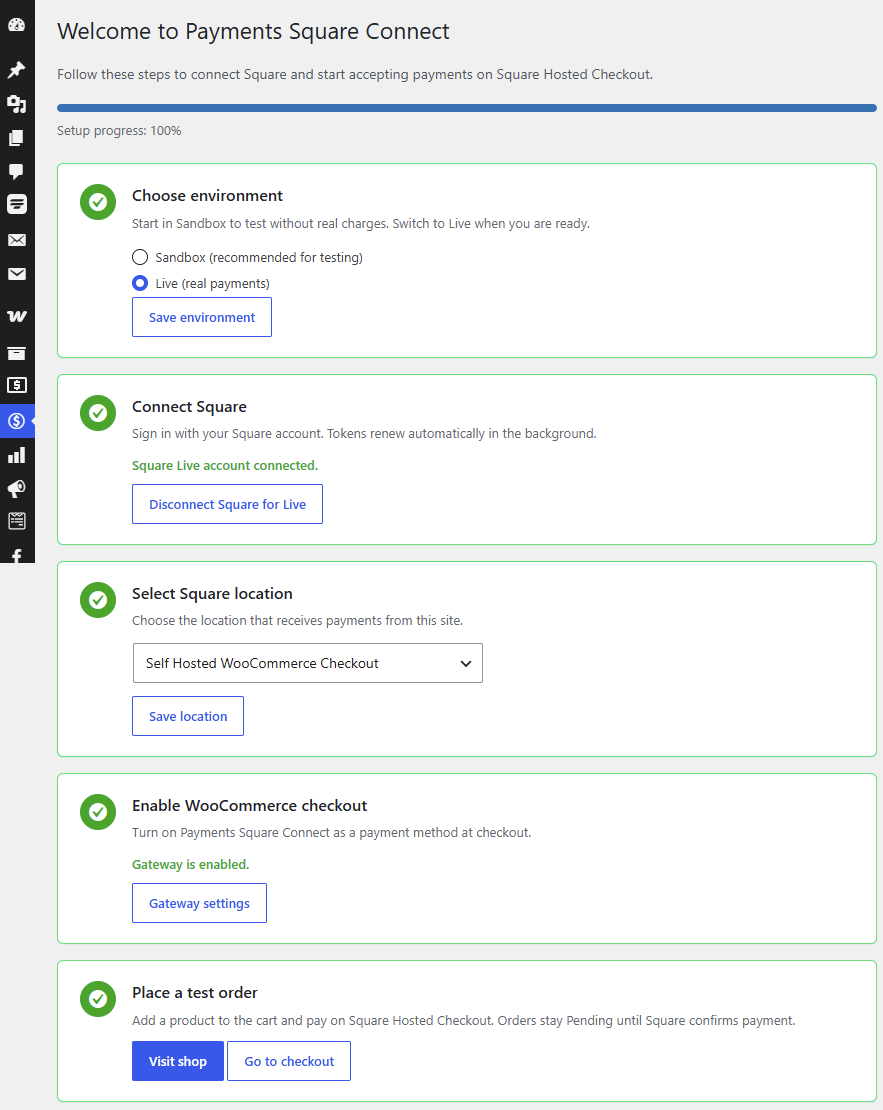
If you skipped setup, you can return anytime from the sidebar.
!!! tip "First time?" Start in Sandbox mode — no real money is charged.
2. Choose Sandbox or Live
| Mode | Purpose |
|---|---|
| Sandbox | Testing with Square test accounts |
| Live | Real payments from customers |
You can connect both environments separately. Switching Sandbox/Live does not disconnect the other mode.
3. Connect Square (OAuth)
- Click Connect Square for Sandbox or Connect Square for Live.
- Sign in with your Square account and approve access.
- You return to WordPress automatically.
The plugin renews OAuth tokens in the background — no manual reconnects for normal use.
4. Select a location
Choose the Square location where payments should be recorded. Save settings.
5. Enable WooCommerce (optional)
If you use WooCommerce:
- In the wizard, click Enable WooCommerce gateway, or go to WooCommerce → Settings → Payments.
- Turn on Payments Square Connect.
- Place a test order and complete checkout on Square Hosted Checkout.
6. Configure webhooks (recommended)
Copy the webhook URL from Payments Square Connect → Connect and add it in the Square Developer Dashboard → Webhooks.
Subscribe to payment.updated (payment IDs / refunds) and inventory.count.updated (Square → WooCommerce stock sync). Reconnect Square after updating if new permissions are required.
Webhooks help save Square payment IDs when buyers close the browser early — important for refunds. Inventory webhooks keep WooCommerce stock aligned when Square stock changes — see stock sync.
7. Go Live
When Sandbox tests pass:
- Switch environment to Live on the Connect screen.
- Connect Square for Live (if not already).
- Select your Live location.
- Enable wallets under Checkout Settings (Live only).
Admin menu overview
| Screen | Purpose |
|---|---|
| Get started | Onboarding wizard |
| Payments Square Connect | OAuth, environment, location, customer sync, webhooks |
| Checkout Settings (Beta) | Wallets, tipping, branding (Live) |
| Subscription Plans | Copy Square plan IDs |
| Documentation | Opens this docs site |
| Support | Email, WhatsApp, forum |