WooCommerce Payment Gateway — Square Hosted Checkout
Use Payments Square Connect as your WooCommerce payment gateway. Customers checkout on your store, pay on Square Hosted Checkout, and return to your Order received page — no card form embedded in your theme.
This WooCommerce plugin supports classic checkout and WooCommerce Blocks checkout.
Enable the WooCommerce payment gateway
- Connect Square and save a location.
- Go to WooCommerce → Settings → Payments.
- Enable Payments Square Connect.
- Set the checkout title and description (optional).
WooCommerce checkout flow
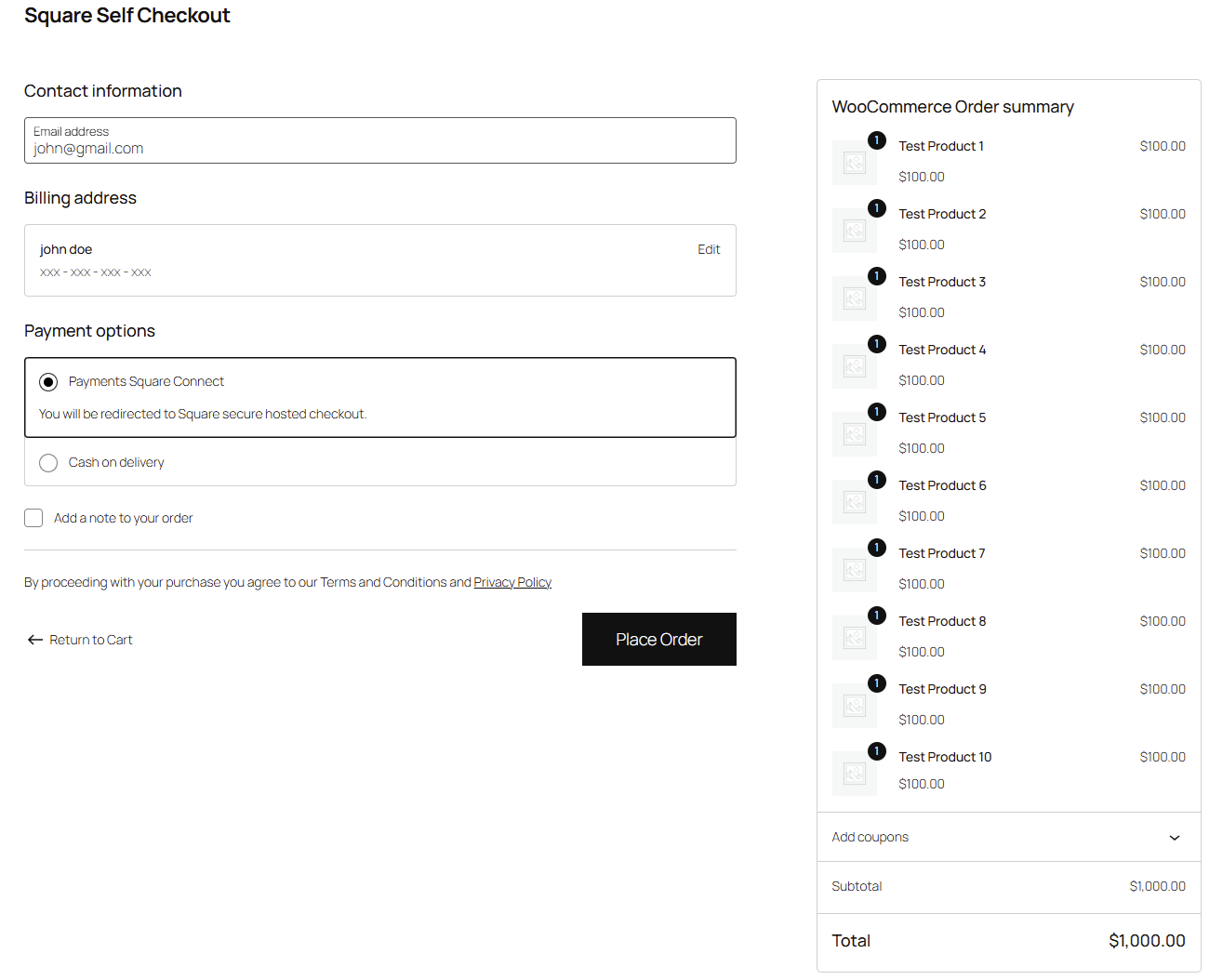
- Customer places an order and clicks Place order.
- They are redirected to Square Hosted Checkout (card, Apple Pay, Google Pay, Cash App Pay, Afterpay when enabled).
- Order status stays Pending while they pay on Square.
- After Square confirms payment, they return to your site.
- Order moves to Processing (or your configured status).
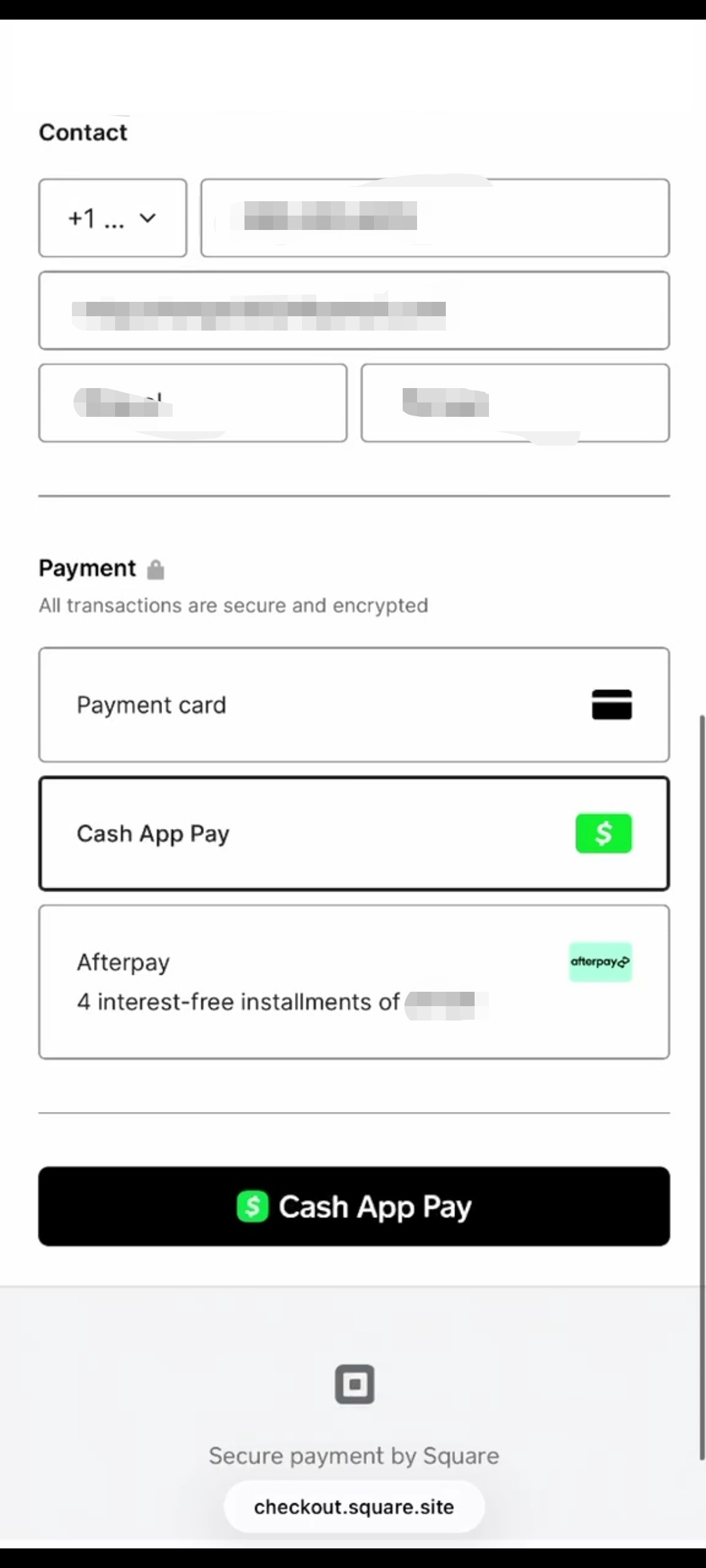
Card numbers are never entered on your WordPress site.
Fix WooCommerce Square nonce errors and checkout breaks
On-site Square card fields often trigger payment nonce is missing, EMPTY_VALUE on Pay for Order pages, or checkout failures after theme, cache, or page-builder updates.
Hosted checkout avoids on-site nonce generation: buyers pay on Square's secure page, then return when payment is confirmed. This is the most reliable WooCommerce checkout path when embedded Square SDK scripts conflict with your stack.
Common triggers for on-site failures:
- JavaScript minification / defer (WP Rocket, theme optimizers)
- Page builders (Elementor and similar) loading checkout twice
- Multiple Square plugins loading the same SDK
- Session or caching plugins on checkout
If you searched to fix WooCommerce Square nonce error, switching to Square Hosted Checkout removes those failure points.
How is this different from WooCommerce Square?
| Official WooCommerce Square | Payments Square Connect | |
|---|---|---|
| Checkout | On-site card fields | Square Hosted Checkout (redirect) |
| Catalog sync | Full two-way sync with Square POS | Optional SKU-based stock updates only |
| Forms | WooCommerce focus | WooCommerce + WPForms, Fluent Forms, CF7 + pay links |
| Best for | POS + online catalog mirroring | Reliable WooCommerce payment gateway without on-site fields |
Choose the official plugin for full POS sync. Choose this plugin for Square payment on WooCommerce and forms with no-code setup and fewer checkout conflicts.
Digital wallets
Apple Pay, Google Pay, Cash App Pay, and Afterpay (when enabled) appear on Square's page. Configure wallets under Checkout Settings in Live mode.
Payment reminders
Unpaid orders can receive automatic reminder emails with the same Square Hosted Checkout link as Pay for Order. Configure under WooCommerce → Settings → Payments → Payments Square Connect → Payment reminders.
Stock sync
When product SKUs match between WooCommerce and Square catalog:
- Paid WooCommerce orders can reduce Square inventory (catalog-linked checkout line items).
- Square inventory webhooks can update WooCommerce stock when Square inventory changes.
See Stock Sync. No matching SKU? Checkout still works by product name and price.